Wednesday, July 10, 2019

Using Google Takeout to backup your Google Data

Don't wait until it is too late! Backup often!    

Google Apps for Education is a great productivity resource. Combining email, calendar, word processor, spreadsheet, presentation and many other resources. However, I feel that everyone should have a tool available to create a backup of your data. Google has answered that need with Google Takeout. Google takeout is an app available to Google Apps for Education and Business (or G Suite). With a few simple clicks, you can create a compressed archive of your valuable data.

* Before you start the Google Takeout app, take a few minutes to perform this general "digital housecleaning" procedure. You should go in and empty the "Trash" and "Spam" folders in your email, as well as deleting any emails not needed. You should also go through your documents in Google Drive and the Google Drive Trash folder. The same procedure for Google Photos and Google Keep.
* If you have files you want to delete BUT you want a backup first, then perform a Google Takeout procedure BEFORE deleting these files, transfer your backup archives to a DVD, then delete the unused files and perform another Google Takeout procedure. I find, that quite often, we clutter our workplace with files we really don't need. We hang onto them just in case. So, it's a good idea to have them on a DVD in the event that you do eventually need them, but they are not cluttering up your work space. At the very minimum, empty any "Trash" folders before beginning.

The following blog article will step through the Google Takeout process.

Open Google Chrome. If you are not signed in to your google account, do so now.
In the address bar, type the following URL:

Your browser then should go to the Google Takeout main page. You should see a page that looks like this:
On the main page, you will see a selection of all approved apps for your google domain. By default, all of the apps are selected. You really don't want to save the content for every app. Besides, that would be a huge backup. I would suggest you consider the data that you really need backing up, such as: Drive, Mail, Photos, Keep, Contacts & Calendar. Of course, if you are a blogger and have a lot of blogs, I would back that up too
So, to start the process, you need to click on the "Select None" button.
At this point, you can select only the items you want to backup. Keep in mind, depending on how much content you have in your Drive or Mail, your backup could be very big. However, google chops the files up in to 2Gig blocks (zip files) so they are very manageable. When you select an app to backup, it will look like this:


It's important to note that all files in Google Drive will be converted to the appropriate Microsoft Office file format. 

Make sure you select your Mail to be backed up. Actually, Mail and Drive are the two most important apps that needs to be backed up.

Google Takeout will backup all of your mail as one big mbox file. This file can be opened in any mbox reader or in an email application such as Thunderbird.Hopefully you won't have to open your email this way, however it is good to know just in case.

Once you have selected all of the apps that you want backed up, you click next to continue. On the next screen you will see the following:

On the overview page, you will see the final settings for the archive. By default, your archive files will be created as a zip file format. You will also be sent an email with download links of your archive files. All that is left to do is click on the "Create archive" button at the bottom of the page. 


The following video will quickly run through a Google Takeout session.


If everything goes as planned, you should get an email with links to download your backup files. I recommend you download them onto your local hard drive. preferably to a local that gets backed up. You should also make a copy of the backup onto a DVD and store it away for safe keeping.

When you create an archive, Google Takeout saves the archive configuration for eight days. You can go under archive manager and see your recent active archives, or your archive history.
During those eight days, you can download the archive. After the eight days are over, you should create a new archive. Good practice would be to create a Google Takeout archive one a month.

That's it for Google Takeout. An easy, important feature of G Suite!

As always, if you have any questions, feel free to contact me.

Tuesday, January 5, 2016

Windows 10 Upgrade Quick Overview

This post is a small overview of the Windows 10 upgrade. It contains a quick overview of why Microsoft released a free upgrade of Windows 10, Things to Consider, Things to Do before the upgrade, and general information. 
This is not a step-by-step guide for the upgrade process.


Windows 10 is the latest Operating System from Microsoft. Due to the problem associated with Windows 8.0/8.1 Microsoft is offering a free upgrade to Windows 10 for anyone running a valid Windows 7, 8.0 or 8.1 version of their operating system. This free offer is valid through June 30th, 2016.

Microsoft is offering this OS upgrade in the form of an online “update” meaning, you will receive a prompt to download and install the upgrade just as you would a Microsoft update. The upgrade is seemingly easy, quick and seamless! Naturally this is what Microsoft wants you to believe. Not to knock Microsoft, but it just isn’t as smooth as they want everyone to believe. Many of the upgrades will go off without a hitch. However, many problems are being reported and many hardware vendors are still working on drivers. If you want/need to upgrade to Windows 10, that is fine. From everything reported, Windows 10 is a stable OS. But you should be aware that you could possibly have issues with the upgrade process.
If you have a newer computer with popular devices (video, network cards etc…) then you are probably good to go.

However, if you have an older computer (especially a laptop) with not so standard devices, you may have problems. In fact, older computers with popular devices (that are still supported by the vendor) you might be OK.

Remember: 
Microsoft released Windows 10 to address 
issues with Windows 8.
It was not released to address issues with Windows 7.

Things to consider:

  • Will you really benefit from an OS upgrade?
  • Is your computer compatible?
  • Are your applications compatible?
  • Are you tech savvy enough in the event that you have upgrade issues?
  • Will the usable life of the computer benefit from an upgrade?
  • Do you REALLY want to deal with a different operating system? Do you have time to learn a new OS?


Things to do:

  • Make a full backup of ALL of your data!!!!!!!! (This includes bookmarks, user account information including passwords etc….)
  • Read the information on the Microsoft site concerning the Windows 10 upgrade.
  • Uninstall any unused/unneeded applications.
  • Make sure your system is fully updated.
  • Do a thorough virus scan AND malware scan.
  • Run “Disk Cleanup”.
  • Connect your computer to a wired ethernet connection (do not use wireless).
  • Do not attempt the update during stormy weather (threat of losing power).
  • Allow enough time to complete the upgrade.
  • Do not get in a hurry!
  • Set aside time to learn the new operating system. Although Windows 10 is much better than Windows 8, it is different! You will need time to learn the new OS.

FYI:


If you are having issues with your OS in general, don’t expect it to run any better with the Windows 10 upgrade. Remember, you are “upgrading” an existing OS. You ARE NOT performing a clean install!

In order to do an installation with Windows 7, you are provided with an activation key. With the Windows 10 upgrade you are not provided with an activation key. Your computer is registered with Microsoft.

You could have upgrade errors if the Microsoft servers are experiencing a high number of “requests for updates”. This will cause the upgrade to fail.

Windows OS Support Lifecycles:

                                Windows 7: January 14, 2020
                                Windows 10: October 14, 2025

Microsoft Windows 10 website

Microsoft Windows 10 Help

Update:
After four failed attempts at the Windows 10 upgrade, I finally successfully installed it on a fresh Windows 7 machine that I have configured and optimized. So far, everything is working just fine. It was on an older Dell computer, but it was a fresh install of Windows 7 that I did the upgrade on. Honestly, I could start working and be productive on this computer immediately.
I will add, I can't stress enough that you make sure your computer is optimized and as clean as possible before attempting the upgrade. I would dare say that many of the problems people have is because they upgrade over an inferior OS install.


Tuesday, September 8, 2015

Windows 10. Should You Upgrade and When?

Update: 
As I was completing this blog, I received a newsletter addressing the new (and ever changing) Microsoft licensing as it applies to Windows 10. Microsoft's licensing structure has always been very confusing to me. For their OS, they have so many levels and versions, and so many caveats that it takes an expert to even fake understanding it. The "free release" of Windows 10 makes it even more confusing! See, when you buy a computer with a Microsoft operating system (OS) on it, you don't really own the operating system. You purchase a license to use the OS. So, it is not your property (except in certain cases which most people would never use). In addition, when you upgrade your computer (such as adding a new hard drive) you have to call Microsoft and get your license renewed or it will not function properly. If your computer dies and you buy a new one without an operating system, you CAN NOT use the OS on your old, crashed computer to install on the new one (unless you have a full retail version of the OS only). All of this licensing mumbo jumbo applies to the current crop of Microsoft operating systems.
So, what does that have to do with Windows 10? Well, the free upgrade of Windows 10 just adds another layer of complexity and confusion to an already convoluted method of keeping track of your license to use a product from Microsoft! 
After reading the newsletter (written by an expert on the subject), it is clear as mud. So why did I include this update? Just to let you know that even if your Windows 10 upgrade goes smooth and works properly you could run into issues later on down the line. 
What kind of problems? Consider the following:

  • You upgrade your computers hardware and have to re-activate your license.
  • Your computer crashes and your have it rebuilt, requiring re-activation.
  • You have to reinstall the operating system (this could be a nightmare)
I want everyone to be forewarned that issues could come up later if something goes wrong and you need to make repairs (either hardware and/or software) to your computer that has been upgraded to Windows 10. 

***************************************************


By now, most of you have heard that Microsoft has released a new operating system called Windows 10. Many of you have even noticed the "Upgrade to Windows 10 For Free" icon in the system tray. I thought I would address this latest release from Microsoft and give you a few tips on how to upgread, when to upgrade and how to prepare to upgrade.

First, Microsoft has been working furiously on Windows 10 in order to get it released as soon as possible. Why? Because Windows 8/8.1 was the worst operating system Microsoft has ever released! Period, end of story! Even Windows Vista was head and shoulders above 8 (and that's saying a lot). They knew they had to come up with something better and they had to do it quickly. So after all the firings, hirings and restructuring at Microsoft, they got busy on Windows 10.
So, why is Windows 10 free? A few reasons: They really messed up on Windows 8/8.1. They figured they better do whatever they could to retain and/or reel back in their loyal customer base. Plus, technology is changing and Microsoft finds itself in a peculiar position. They are making huge changes to their business model in order to compete.

Enough history. Now, Should you upgrade to Windows 10 and if so, when and how? The answer to this question is, yes you should upgrade especially if you are running Windows 8/8.1.
But, not so fast! You have until June 30th, 2016 to upgrade. So, here is what you should be doing to prepare for and complete the upgrade process.

First, you should wait. You don't want to upgrade the minute a product comes out. Especially if you are running Windows 7 (a perfectly capable and stable operating system). You should give Microsoft a few months to release updates and bug fixes before upgrading. No need being bug testers for Microsoft. Let them shake out the problems then you can proceed with the upgrade.
Windows 8 users should upgrade first. Let's face it, you are the ones in the most pain and need some relief. If you are running Windows 7, I wouldn't be in a hurry to upgrade. Give Microsoft enough time to sufficiently release updates, bug fixes and drivers.

When you get to the point that you feel it is time to upgrade, you want to go over a few things to make the process as painless as possible. Here is what I would suggest before attempting the upgrade process:

  • Make sure you have a good backup (or two) of your data. It never hurts to assure you have all of your files successfully stored on an external hard drive or DVD.
  • After making a good backup, it would be a good idea to delete any unused file on your system. As long as you have a backup and you no longer use the files, no need to keep them around.
  • Uninstall any software you aren't using. This is a good tip for any user, but especially if you are going to be upgrading.
  • Complete all of your Windows Updates.
  • Do a thorough virus/malware scan of your system.
  • Turn on system restore and create a good restore point.
  • Make sure you have plenty of hard drive space.
  • Make sure you have your Windows 7/8 product key available (just in case).
  • Do your research on Windows 10 first!
  • Now, read some more (it won't hurt)!
  • You might want to download the installation media just in case!
When you start the upgrade process, allow enough uninterrupted time for the process to complete. As a note, I wouldn't start the upgrade at any point when you think you might how power interruptions (weather related). It is never a good thing to lose power while doing any kind of upgrade and/or update. So, if you see a huge thunderstorm churning in the distant, find something else to do!

After you have completed the upgrade process and you boot up the computer and log in for the first time, you need to take time to do an initial check of your system. Everything could run smooth and you might not have any problems. Some issues might not surface for several days or weeks. However, check the following to insure your base system is functioning properly:

  • Open Windows Explorer and check that you can successfully navigate all of your file system. Go to "My Documents" & "My Pictures" and check to see if all of your files are intact. If you have external drives attached to your system, check them as well.
  • Check to see if your printer is still recognized. If so, try to print a document. 
  • Open your most frequently used applications to insure they work properly.
  • Insert a USB thumb drive to see if you can access it properly.
  • If you transfer photos from a camera (or a smartphone) to your computer, try the process with some test photos to see if the process works properly.
  • If you have multiple accounts on your computer, try logging in to each one. 
  • Run Windows update.
At this point, if everything is working properly and without any weird glitches, I would say you have a successful upgrade! But, don't be surprised if you experience some weirdness down the road. Especially with hardware drivers. When a major OS is released, it takes a while for the drivers to be updated, so you just have to deal with it. Just make sure you stay current on your Windows Updates! It is also possible to have some issues with older software as well.

I'm sure some people will think all of this reading and planning is overkill. It might be, but I would rather be prepared and have a successful upgrade that a half-hearted effort with questionable results. Poor planning is usually just asking for problems.

I must mention upgrading from Windows 7. There is really no technical need to upgrade if you are running Windows 7. Windows 7 is probably one of the best operating system Microsoft has ever produced. The only real reasons to consider upgrading from Windows 7 to Windows 10 are:

  1. Microsoft is offering you a FREE operating system!
  2. Each Microsoft OS has a lifecycle. Windows 7 is good until January 14 2020. Windows 10 lifecycle ends on October 14, 2025. So (on paper at least) upgrading buys you 5 extra years.
Let's be honest about the above information. Do you really intend to keep your computer for FIVE MORE YEARS????????????? Really? Plus, in the case of Windows 10, you are looking at 10 more years. Looking at either set of numbers, it really doesn't make sense to upgrade Windows 7 to Windows 10. HOWEVER, Microsoft has made their move. Windows 10 is soon to be the latest of their operating systems. That kinda forces the end user to switch. Sure, you can keep Windows 7 and it will continue to work fine, and you will continue to get updates. But, you won't be running the latest and greatest. You will soon only see mentions of Windows 10 when referencing a Microsoft OS. So you might as well upgrade. Besides, most people will be buying another computer before these licences expire.

Remember, Microsoft released Windows 10 to replace the poor excuse of an operating system called Windows 8! Windows 7 doesn't need to be "fixed".  

In closing, don't get nervous and worry that you are going to miss the boat. Give Microsoft a little time to get the bugs ironed out, then start the upgrade procedure.

Wednesday, May 27, 2015

Portable Apps! Apps on the go.

This portable apps post is focused exclusively on apps for the Windows operating system.

Apps. What are apps? Well, apps is the new buzzword in technology for applications. Nothing new, we have had applications since the first script was written on a mainframe computer. Yes, apps (or applications) have come a long way, and apps are available for everything from a desktop computer to a smart phone. In technology today, the focus is on apps that you install on your smart phone or tablet. But this blog is about portable apps.

So, what are portable apps? Portable apps are applications that you run on a conventional computer (desktop or laptop). What is so unique about portable apps? The fact that you don't have to install them to run them! See, with conventional applications, you have to go through the install process, that while installing the application to your computers hard drive and setting program variables, also makes a number of changes to your system registry and operating system. Over time, this will cause a computer to run slower and overall cause a degree of "bloat" on your computer. With a portable app, no changes are made to your computer. The application is totally self-contained.

I know what you are thinking; "what's the big deal about a portable app"? Well beyond the fact that you don't have to go through an installation process, you have several advantages to traditional applications. Let's look at one scenario. In your job, you travel a lot. you use a web browser to check on emails, do research and other tasks such as calendar entries. You have access to computers in the places you visit (such as schools) but you don't want to use their browser. You could have a portable web browser on your usb drive and use it instead. What are the advantages of using a portable web browser? You can configure the portable web browser with all your bookmarks, extensions and settings. You can also be assured that all of your passwords, cookies, history, settings and cached browsing files remain on your USB drive and not on the client computer that you are using. Another advantage is you get to choose the specific browser you want to use as opposed to what is installed on the computer you are using. Another advantage of using portable apps is, you can setup and try software out on your computer without actually doing a full installation. That way, if you do not like the program, you can just delete the app and no harm is done to your computer.

Just because I used a web browser in the above example, don't think that is all portable apps has to offer. Recently, I counted 343 portable apps listed for download on their web site! The apps are listed under the following categories: Accessibility, Development, Education, Games, Graphics & Pictures, Internet, Music & Video, Office, Security and Utilities.

I'm sure that some of you are still wondering how to use portable apps, or how they would be beneficial to anyone. Think of it this way: you are working on a project that requires you to have access to a web browser, a word processor, an FTP client, an HTML editor, and a photo editor. You are working on this project in several locations on several computers. You could install all of the apps you need from the portable apps web page onto a USB drive and copy all of your data on the drive as well. At this point, you now have all you need on your USB drive to do your work on-the-go! All you need is a computer. You don't have to worry if the computer has all of the applications you need. They are all on your USB drive.

So, how does one actually configure a USB drive so you can use portable apps? First, get a good USB drive with plenty of space. On the USB drive, create a folder named "portableapps". Then go to the portable apps web site and download the apps that you want to use. Then, navigate to the folder that contains your portable apps downloads. Double-click on the "installer". When the installer opens, one of the prompts you will receive is: where to extract your app to. Choose the portableapps folder on your USB drive. Keep in mind that there is no installation process, in the sense of a traditional installation. What the installer does is extract the files to the destination folder. Remember, these apps are totally stand-alone, meaning, they do not need to install anything to the host computer or make any changes to the registry of configuration files. That is the important thing to remember with portable apps.

You also have the option of placing your portable apps into a DropBox folder. Your apps will run just fine from DropBox (as long as your host computer is running a version of Microsoft Windows). Portable apps can also be setup on an external hard drive or network drive. You can also download the PortableApps Platform, which is a total solution for portable apps and includes a menu system for your portable drive. They also have a good support page to help you out with any issues you may have. Although portable apps are directed toward the Microsoft Windows crowd, you can run them on a MAC and Linux with a little work.

Portable apps are a great resource for the tech savvy user. Take a few minutes and head over to the PortableApps website and check out their offerings. Find an app you would like to try out, download it and give it a whirl!

Tuesday, March 10, 2015

Avoiding "Junkware"

"Third Party Software Offers", this is a never ending fight that most computer users aren't even aware of. They are not aware of it until they have problems with their computer and have to call their trusty computer geek to "fix" their PC. You might not be aware of it either, but in this blog entry, we are going to discuss Third Party Software Offers and how to avoid them.

What exactly are "Third Party Software Offers"? OK, follow me on this, it could get long.

Ask Toolbar installer
Java's "Ask Toolbar" Installer

Everyone uses free software of one type or another. Java, Adobe Reader, Adobe Flash Player, Skype plus a score of other packages. One way these software distributors generate income is to add, somewhere in the installation process, an option for you to install "other software" during the normal installation process. This software is usually something like the "Ask Toolbar", "McAfee Security Scan Plus" and many others. You probably have some of this junk on your computer right now. By default, this unwanted software is selected to install. So, if you do a standard install, without "deselecting" these options, this software WILL be installed on your computer. The image to the right shows how the Java Update Installer inserts the additional installation of the "Ask Toolbar" during the normal installation process. When updating Java, most people fly right by this screen leaving the "Ask Toolbar" installer option checked. If you simply click "Next" without first deselecting "Install the Ask Toolbar and make Ask my default search provider" then the installer will install the Ask toolbar AND make Ask.com your default search engine.

Another installer that comes to mind is the Adobe Flash installer:
Adobe Flash Installer with McAfee Security Scan Installed embedded
Most people will need the Adobe Flash Player installed on their computer. What you don't need is the "McAfee Security Scan Plus" installed. Not only is this a bad idea, it could actually interfere with your current antivirus software. Without user intervention, The McAfee Security Scan Plus will be installed with this version of Adobe Flash Player. You have to deselect the McAfee install option. 

The above are a couple of the many examples of installers that have optional "Third Party Software" installer built-in. The following examples are web sites that can cause the casual user to click where they shouldn't and get in trouble before you know it.

Many times when searching for web sites hosting free software, you will find yourself on a site that is very hard to navigate and doesn't have clear instructions on downloading the software you were intending to download. The following image shows just how confusing it can be:

I did a Google search for "Malwarebytes Anti-malware" a great program that does wonders on computers that have malware installed. They have a free version for personal use. The image above does have a download for Malwarebytes, however, look at the deception built into the site. You can clearly see three deceptive download prompts that are rather large and will certainly cause confusion. You see where I circled the actual download URL in blue. Even though this site contains a download for Malwarebytes, I would not download from this site. I want to be sure I have the safest version of software available. 
Now, look at the image below. I did a google search for "Malwarebytes Antimalware". As you can see, I get many hits, however the first two are from web sites that I personally wouldn't trust. Why would I when the third hit is the actual Malwarebytes website, https://www.malwarebytes.org. 


As you can see (if you take time to actually examine the search results) the third hit is the actual Malwarebytes site. This would be the proper site to visit and download the software. I'm not saying the first two hits are bad sites, however, why visit these sites when you can go straight to the source? 

In light of the above examples, what is a non-geek, casual computer user to do? 

  • If you think you need a certain software package or browser plugin, ask your tech specialist. They probably know just what you are looking for or they can do the research and find a safe alternative. 
  • Go to the source. When searching for software, do a little research and find out who distributes the software you are looking for. I did a google search for "malwarebytes anti-malware information" and found a wikipedia hit and several results from university tech sites. These sites had links to the original Malwarebytes download site.
  • When doing an installation, never do a default install. Use the custom install if available. That way, you can deselect and default third party software options.
  • Take your time and read each page of an installation. If unsure, cancel the installation. Be sure of what you are installing. 
So in review:
Beware of fake download buttons. Never click on a download link that you are not absolutely sure of. Go to the source for free software downloads. I'm not saying you can't download software from a site that has fake download buttons (since most sites have them) just be sure of what you are clicking. Be alert during the installation routine. Carefully read each page. Some of the installation instructions are very sneaky and worded to trick you. Any time you see an option for a "custom install" or "Advanced options" click on it and make sure additional installations aren't selected by default.

Last but not least, make sure you absolutely need the software BEFORE you install it. Many times people think they need a certain piece of software and, without giving it serious consideration, install it "just to try it out". Bad move! If you are that curious about software, maybe you need a test computer or a "virtual computer" with the express purpose of testing software on. 

If you think you have inadvertently installed junkware on your computer, put a plan together to get it uninstalled ASAP!

Wednesday, January 21, 2015

Technology........

Disclaimer: Much of what is displayed on this blog contains a little (or a lot) of my opinion. I try to be objective. I refrain from pointing fingers, however, I will take the opportunity to express my concern and challenges in matters of education and technology. Teachers, Technology Directors, Administrators, I feel your pain. I hear about it all the time. I see both sides. The following post is my honest opinion concerning real, useful technology implementation in our school systems. It didn't get this way overnight (well, it almost did), and it is going to take some time, and the attention of a lot of people before it changes. I hope I see the change in my lifetime.

This could very easily turn into a rambling concerning technology, however, I will attempt to make this a productive post. I suppose my best hope is that this post is thought provoking. Hopefully it will encourage people (that work with technology) to take an honest look at how they use technology in their job. I also hope it encourages technology users to ask some important questions (and hopefully get honest answers). Such as:

  • Is technology actually helping me in my job?
  • Am I using technology correctly?
  • Am I using technology just for the sake of "using technology"?
  • Am I "in charge" or am I a "slave" to technology?
  • Do I take time to understand what I am actually doing?
  • Am I using the correct tools for the job?

I have had the opportunity to see literally hundreds, if not thousands, of people use (or attempt to use) technology going all the way back to the early '80's. This includes everyone from attorneys, paralegals, military personnel, support personnel, medical staff, regular office personnel (group 1), and educators (group 2). Without a doubt, the most interesting of these has been the educator. I have a few theories as to why the educators have been, and continue to be, the most interesting technology users. Before I get into an explanation of my theory of why educators excel in the coveted position I place them in, we need to examine why those other groups DO NOT fall into the same category.

Group One Category
Generally, people that fall in the group 1 category learn specific skills pertaining to specific software applications that are directly related to their job. It might be a spreadsheet that they have to populate on a regular basis, or a database that list products, services, or inventory items. It could also be a publishing program to create flyers, programs, or handouts. A very popular software application is a word processor. In a general office environment, it goes without saying that you have basic word processing skills, many companies require a certain WPM level. So, in working with these specific applications, they use the basic skills to perform their job duties. In most instances, they learn their basic skills from a co-worker (or the retiring person they are replacing), from their boss, or in some cases they take a short class to learn the basic skills.  As time goes on, they become even more familiar with these applications, and with familiarity they become more proficient. They might even buy a book or take a class on this application because a large portion of their job depends on it. Rarely do they stray from the instructions given them from their trainer, that is, until they need to do something new that they weren't taught. At that point, they will try to figure out how to perform the new function, many times by asking friends and/or coworkers. The truly industrious ones will seek an answer on a forum or by using a general Google search. But generally speaking, these people (group 1) learn and execute tasks that are a part of their everyday job, and they do so repeatedly every day. The applications, entries and associated peripherals do not change often, which is a good thing, because these people do not like change and do not have time for change.

Group Two Category
This takes us to the group 2 category, the educator. For the most part, the educators we are referencing are teachers. This category does not include most central office employees, since they would fall in the group 1 category. Let's take a moment to define a teachers profession. In the most basic terms, they have the primary responsibility of teaching/educating youth. For (hopefully) twelve years students are molded by the work and efforts of the teacher. Teachers go to school to receive training for their respective courses and are equipped with textbooks specifically created for these courses. In my day, the ingredients for education included:
  • A teacher
  • A classroom
  • Students
  • Pencil and paper
  • Textbooks
  • A chalkboard
You take these ingredients, mix them together and you have education. Now, granted, I wasn't thrilled about going to school, but I will admit that it really wasn't that bad. I was a solid B student without really trying, and I did retain a good bit of what I was taught. The one BIG thing I learned in school was "the desire to learn". I always wanted to learn new stuff! I still do. The educational foundation that I was subjected to was what I needed to continue to learn to this day. About the only thing that actually changed in the above mentioned ingredients were a dry-erase board, a calculator (for advanced math) and an occasional film (reel-to-reel) or overhead projector. But for the most part, it was the above ingredients that consisted of many people's educational needs.

Enter Technology! Although computers started showing up in the late '70's through the early '80's (mostly used by hobbyist, business and colleges), we really didn't see technology seriously hit public schools until the '90's. These dates are generalizations. You can certainly find exceptions to the above dates. By the mid '90's the new "thing" in education was TECHNOLOGY! A push was made to put computers in schools, and in many instances in the classroom. Some schools even had a technology lab. This was a slow process that is still evolving today. At first it was a computer with some educational software or a typing tutor. As time went on, more hardware and software was introduced to the educational world. Literally hundreds of specialized software packages have been created for education. And just as many hardware devices have be manufactured as well. Hundreds of companies were created just to address educational technology. I have seen many "fads" come and go throughout the years. And that is part of the problem. It seems that in education we jump at every little shiny thing that is dangled in front of us.

OK, so we have technology deeply entrenched in education. So why are educators different from other technology users? Good question!

(This next section is strictly my opinion. It is based on years of being around educators, teaching technology courses, assisting educational consultants in their quest to help teachers and helping many, many educators utilize technology in their environment.)

In the race to introduce technology in education, we left out one important ingredient: proper training! There, I said it. I have been saying it for years, but now it is official. We have yet to address consistent, proper education. Sure, there has been various training for educators and application courses are available, but a good, solid training foundation has never been made available to our teachers. Even when we had a big push to train teachers in technology, we forgot the foundation. It was (and still is) assumed that they understood the basics.

Even with the fact that many of these teachers do not have a solid technology foundation, they actually do a good job utilizing technology in their curriculum. They put in the time to figure out stuff, they research and actually use the technology. I always wonder how much better these people would be if they had the proper training and a firm technology foundation to build on.

What do I mean by proper training? Every time I have a training session with teachers, I always mention file maintenance, file extensions and proper procedures for working with your files. It is unfortunate that I have to take time to do this, but in order for the participants to understand the subject matter, I need to go over it to some extent. The majority of the times, the participants have never heard of file maintenance. They do not understand that technology is built around files. Everything pertaining to computers and the Internet is dependent on files. A blog is a compilation of files (data). A podcast is a file (audio). A web page is a collection of files. All of these files have two defining components: a filename and an extension. The extension allows the file to be associated with an application so you can easily edit and/or use the file. For instance, an audio file might have an extension of "mp3" or "wav". Without these extensions, your computer (or device) would not know how to deal with these files. This is just one example of the type of training that I feel is missing from our educators resources. It's really a struggle to be truly proficient and confident working with technology without this training!

Another example that I see all too often that is a result of bad training is, users saving files on their devices desktop. This is a no-no! We should never do this, however people have not been trained to "not do it" or given the reason why.

OK, I believe I stated my case on the importance of proper training. BUT there is another problem that has plagued our educators since the introduction of technology in education. Here is the way I see it:

Teachers have been bombarded with "the latest, greatest" software applications or devices from day one! But they have never been given time or training to properly implement these wonderful tools. Before they have time to fully comprehend this software or hardware, someone hits them with another product that is the end all, be all of educational technology. Think back over the last twenty years at all of the products (both hardware and software) that has been introduced to school systems. It's enough to make you dizzy! Now, consider that all of these products have been heaved on users without the proper training in the first place. I would also ask you to keep in mind that these lofty expectations have been placed on folks who have a primary responsibility to actually educate our children. So, we want you to educate your students, while integrating all of this wonderful technology into the lesson plan, while conforming to State/Federal standards! Really?

I almost feel guilty adding this, but while all of the above is going on, we are neglecting proper technology training for our students. Every student in the United States, should have proper technology training before graduating. This training should include more that just keyboarding. They will be expected to utilize technology in today's workforce, so why shouldn't they be properly trained? Now, for the person that would offer the argument that everyone will not enter the conventional workforce, I would offer this rebuttal; even in the arts, you are surrounded by technology. Photography is now a digital environment, which requires a digital camera, a computer (for file maintenance), and a web presence to display your work. In many bands today, you find people using computers to create digital files of music scores. This digital sheet music is displayed on a tablet device instead of a conventional music book containing printed charts. Technology is a part of our everyday life.

The above statements are only addressing issues with technology. We won't even go into all of the ever-changing state and federal initiatives that educators are expected to comply with on top of everything else.

Whew, I realize that I might have jumped up on the soapbox a little. I also realize that this has been a concern of mine ever since I stepped into the educational world, and that I have been harping on it since I saw the stark contrast from the business/military world. But we are dealing with something very, very important. The education of our children, our future. Do overs are hard to come by in our life. We should be doing it right the first time. We shouldn't be expecting teachers to use technology in education by the seat of their pants. I realize we are caught in a vicious cycle and it is going to be difficult to stop the cycle and address the issues. It must be addressed.
The longer we ignore it, the worse it will get!

Thursday, December 4, 2014

Is a Chromebook for you?

The Chromebook. They are a technological marvel that came along at just the right time. For years you had two choices when using a "computer"; a desktop or a laptop. In the early stages, the laptop was big, bulky and rather limited. They quickly improved and started giving desktop computer a run for their money. Just when laptops were making great strides, boom, along comes the smart phone. Suddenly everyone just had to be mobile. Forget being tied down to a desktop computer, you didn't even want the burden of a laptop. Why would you when you had a device that you could stick in your pocket with all the apps you needed. Apple had the iPad, and it had it's faithful followers. Mostly diehard Apple users. Several companies tried (unsuccessfully) with the "Netbook". The netbook was a smaller version of a laptop, with limited features, and a limited Windows operating system. They were "OK" but left a lot to be desired. I think people tried to like them, but really, they were more trouble than they were worth. Plus, the smart phone was such a success, and if you were going to use a netbook (which was a limited tool) why not just get an iPad?

Enter Google. Love them or hate them, the folks at Google are true geeks and are not afraid to step outside the lines. Following the overwhelming success of their Chrome browser, they started experimenting with a streamline operating system built on the linux open source kernel. Their operating system had a lot going for it, small, fast, and free. Keep in mind, while they were tweaking this really cool OS, they were pushing cloud services like gmail, drive, calendar and free cloud storage. I think they knew exactly what the end goal was and had the perfect script to achieve said goal.

When all the stars were properly aligned, they released the Chromebook. The Chromebook has been out for a while now and they have several models to choose from. It's an idea who's time has come. BUT is the Chromebook for you?
We are going to look at the pros and cons of a Chromebook and why it might be the perfect fit for you.

Face it, smart phones are great. They are small, lightweight, powerful and have a ton of apps. Plus the target users will stand in line for hours for the latest and greatest. The smart phone owner is hooked, no doubt about it. With that being said, sometimes you just need a computer. And most of the time you can be just as productive with a laptop. With computing changing rapidly, and Cloud services being a mature alternative, it's probably time for many of you to consider a Chromebook. Here are a few things to consider when thinking about making the move:

Why Should You Buy A Chromebook?
  1. You mostly use your computer for online content. If you use webmail, Facebook, twitter, pinterest, tumblr or other web-based apps/data, then the Chromebook is for you.
  2. You are already a Google fan. If you already have a Google/Gmail account, then you are familiar and comfortable with the way google works. You probably already use their cloud apps.
  3. You "get" the cloud. If you understand what cloud storage and online apps are (and use them regularly), you are ready for a Chromebook. Don't laugh, there are MANY people in the technology world that do not understand the cloud. They don't even know it exist. 
  4. The OS takes care of itself. The Chrome OS updates automatically and seamlessly. And it performs flawlessly. You don't have to worry about updates, it is taken care of for you!
  5. No viruses! The Chrome OS is built with security in mind. Plus, it uses the Linux kernel which is not a big target of viruses. One less thing to worry about.
  6. You are very mobile. If your job or personal life is "on the go" then the Chromebook is just about perfect. Small, lightweight and fast, all the stuff you need and nothing you don't need. A perfect way to stay connected.
A few other things to consider. 
A Chromebook is inexpensive. It cost much less than a PC or Mac laptop. They are very lightweight and could easily fit into a purse or backpack with room to spare. They boot up quickly. The boot time for the Chromebook is between 5 - 10 seconds. That is fast! And the boot times stay consistent. The Chromebook has multiple USB slots,  microSD slots plus an HDMI output, so you have built-in expansion. Another big plus is battery life. The Chromebooks have great battery life!


Why The Chromebook Might Not Be Your Best Choice


  1. You need to store lots of files locally. For instance, if you are a photographer, you probably need LOTS of storage for digital images. The same goes for video & audio files. With a Chromebook storage being between 16 - 32 Gig, it wouldn't be the best choice for a user that needs tons of storage for their files.
  2. Use of specific desktop applications. If you do lots of digital image work, or audio/video editing, then skip the Chromebook. The Chromebook was not designed to install a lot of applications on. So if you are a big Photoshop user, or gamer, look elsewhere.
  3. If you are offline a lot. If you spend a lot of time offline (or don't have access to the Internet) then you probably shouldn't buy a Chromebook. The Chromebook is meant to be an online tool. For instance, if you are a writer that mainly uses a word processor and stores your files locally and you mainly work in areas where you don't have Internet access, you would be better off with a regular computer/laptop.
  4. If you really like the way you are doing things and really don't want to change. Hey, I understand that! Change for the sake of change is quite silly. If things are clicking along just fine in your technology world, no need to change it. 
Keep in mind that with the Chromebook, you can't install a ton of apps on it. You can get apps for the Chromebook and you have the Google Cloud services. Printing can be a substantial hurdle as well. Plus, you can't take advantage of Skype, however you will have access to Google Hangouts.

With the prices ranging between $169 - $380 (with the average being $250) you should easily find one to fit your budget. Personally I like the Samsung 11.6 inch Chromebook 2 with the Celeron processor, 2GB memory and 16GB flash drive. Street price for the Samsung is $249. It's not the fastest, doesn't have the biggest screen, or the largest hard drive. For the price you get a lot of computer that is light and small. Besides if you are looking at Chromebooks, you probably already have a Google account for online storage.


The Chromebook might not be for everyone, however it is a wise choice for many users who mainly access the Internet, use social media and check their email. In fact, I'll go so far to say this; most home users actually need a Chromebook. It would eliminate many of the problems they have with malware, viruses, and updates, (not to mention the pain of using Windows 8) and so many other issues associated with a conventional computer.

Before purchasing a Chomebook, make an honest assessment of your computer needs, look at a realistic budget, and if possible, try a Chromebook before you buy. You might find that a Chromebook is the perfect tool for your technology needs!


Additional info.  FYI, off the record, & personal opinion

After finishing the above post about the Google Chromebook, I felt the need to add some additional information for folks considering a new computer. Let me say upfront, this is my unfiltered, biased personal opinion, however, I will try to keep it on point and honest. 

If you go shopping for a new computer, either at a physical store or online, you will be deluged with millions of tables, notebooks, regular laptops & of course the Chromebook. Try as hard as you can to avoid an impulse purchase. You should also avoid being lured into a purchase based only on the "incredible price". Remember, almost always, you get what you pay for. 

Many companies have tons of "Windows-based" laptops to compete with the Chromebook. Here is my opinion on these low-cost laptops. Yes, they run Windows OS. But it is a variation of Windows 8 (the absolute worst OS ever coded)! Yes the laptops are cheap (hovering around the $100 - $300 range). Yes they come with Office Online (for a year). However, don't think you will be getting a full-on super-duper fantastic laptop just because it has Windows and Office on it. Sure, you will be able to surf the web and check out all the social media. Sure, you have the option of creating/editing Office documents. Sure, you can install Windows-based applications (but they are going to run slooooow). But beyond the part about surfing the web, you should be patient, since these laptops are not the most cutting edge technology available. They will have slower processors, less RAM, and smaller drive storage (usually 16GB ssd). Why do you think they are only $100 - $200? In addition to what I see as obvious shortcomings of the machines, you will still have to concern yourself with updates, patches, virus/malware protection. All on a slower version of Windows 8. 

The Chromebook's price range is between $169 - $380 (with a nicely equipped Chromebook at $249). They have a very fast Chrome OS which boots quickly, has great battery life and isn't trying to use any bait & switch tactics to lure you into buying one. Google let's you know upfront what a Chromebook is and what it was designed to do. It is an Internet device! A tool to access online content and Cloud-based storage & apps. No surprises. 

If you don't think a Chromebook will work for you and you absolutely have to have a Windows-based laptop, spend the extra money and get a full fledged laptop with adequate RAM & hard drive space and a fast processor. Don't forget a webcam, CD/DVD recorder, large screen, plenty of USB ports, full size keyboard and a minimum of 4GB of RAM. Try to find one within your specifications that has Windows 7 installed instead of Windows 8. BUT, be willing to pay the price ($400 - $800 and up) for the extra horsepower!

Remember, you aren't doing an Apples to Apples comparison here. You are looking at two completely different ends of the spectrum. Find the tool that works best for you.

Monday, December 1, 2014

Which Operating System Should You Use

Your computer has to have an operating system in order to run. Without an operating system (OS), a computer is just various hardware components connected together in a nice case. Very few people beyond the Geek level even give a second thought to the operating system running on their computer.
I think that most users think that the only operating system available is "Windows" or "Microsoft Windows". In most cases they are right. Microsoft operating system has a clear monopoly on the user end of things. In the server world, even though Microsoft probably has a bigger percentage of the server OS market, Linux is making huge leaps with big companies using their server OS.

In actuality, the desktop user has basically three choices for an operating system: 

Microsoft:
Microsoft has the most users in the desktop market. Windows XP and Windows 7 being very popular operating systems. Even though Microsoft has stopped support of Windows XP , it is still very popular and being used in large numbers. Microsoft's newest operating system, Windows 8 (& 8.1) is a huge disappointment and generally is being avoided by most users. In fact, Windows 8 was so badly received, Microsoft is working feverishly to get the new Windows 10 to market. Even though Windows 10 should be released soon, I see most businesses and educational entities continue to use Windows 7 until it is no longer supported by Microsoft. Windows 7 is stable, people trust it and there is no real reason to change to Windows 10. Available software applications for the Microsoft operating systems is huge. This is one area that Microsoft has an apparent advantage, and isn't likely to change anytime soon. I say apparent advantage for a reason, which I will explain later. All major software vendors put top priority in the Microsoft releases. Although, many are starting to put more emphasis on the MAC and Linux OS as well.

MAC (Apple):
Apple has always had a strong niche market of faithful followers. That isn't about to change anytime soon. Apple has a great operating system. It works, and has few issues. The reason Apple has a reputation for such a stable OS is, they control the hardware in their systems. Due to this tight control of the hardware they can insure that the OS and drivers will perform at top efficiency. Everything works together and the end-user has no surprises. Another part of Apples success is the iPhone and iPad. These two products are built to work well with the MAC computer in a seamless manner. iTunes is a hugely popular online "store" with everything from music to apps. However, most iTunes users have a "love it or hate it" attitude. To the casual user, it works well, but at times can be problematic. Plus, iTunes pretty much demands that it takes control of your digital music catalog, and you do not get a lot of say in the matter. That's fine unless you want to make certain changes to your music collection and iTunes doesn't want you to. I know of people that have given up their Apple products simply because of iTunes (although they were perfectly happy with everything else). the biggest issue with the Apple computer is the upfront cost of the MAC and MacBook. They do cost more, however they work flawlessly and do not suffer the issues that Microsoft does.

Linux:
Of the three operating systems, Linux is probably the one that most users are least familiar with. Linux is a free operating system based on the Unix OS and released by Linus Torvalds in 1991. Linux has a huge share of the server market and growing every year. In recent years, various linux desktop operating systems have made huge leaps in becoming a truly user-friendly OS. One of the most popular, and easiest to install and use, desktop distributions is Ubuntu Linux. Ubuntu linux is very easy to install and use. It has lots of hardware drivers and application software for most users. Ubuntu Linux is based on the very stable Debian distribution, however the installer is much easier. Linux operating systems (for the most part) is a part of the Open Source Software community. Generally speaking, open source software is developed by a community of developers and programmers. It is made available to the general public with no (or very little) copyright restrictions.
The bottom line with Linux is, people just don't know about it. The ones that do, are intimidated and won't give it a try. I have found that people are very resistant to change when it comes to technology. Don't get me wrong, change just for the sake of change isn't my idea of a fun time. However, I have said for years that educational facilities could save millions of dollars by adopting at least some of the open source software in their systems. The challenge always comes down to lack of time and man hours to learn something new and implement it. Oh, and face the disgruntled employees that has to deal with change! Seriously, many people could perform their jobs fine with open source software. Especially an open source (Linux) operating system. There are many Linux distributions available that run great on older hardware. You can take a computer that runs slow with Windows 7 and install a version of Linux (optimized for older hardware) and it will run considerably faster. It will continue to run well too.

Does it really matter which operating system you are using? In the big scheme of things, no! But, if you are experiencing frustration with your current OS, or just want to try something new, you owe it to yourself to try something different. If you have a home computer, and it is an older system, and you mostly use it for surfing the web, checking out FaceBook and reading your email, Linux would be a great alternative. My main office  computer is using a version of Linux, and all of the software I use on it is open source! All of the software I am using on my Linux office workstation is free!!! My job responsibilities are wide and varied, but Linux works just fine. I also use the MAC OS as well as Windows 7.

I honestly think that technology is getting to the point that the operating system you use will become less and less of an issue. Think about it, we are rapidly getting to the point that most of our content is online. Much of our applications are online as well (if not, you can find online alternatives). So, in the future, our operating systems will be very scaled back from what we have now. The main focus of future operating systems will be:

  1. A powerful web browser.
  2. Network capability.
  3. A simple graphical user interface.
  4. Online (Cloud) apps and storage.
I omitted printing capability in the list since many online apps have printing functionality built-in.

Update! Another serious contender

A new emerging operating system is Chrome OS which comes installed on ChromeBooks. Actually the Chrome OS is built on the Linux kernel. So you have a linux-based operating system that is designed to work with web applications and data. This is the future of operating systems. Beyond specialized duties (video/audio editing, photo editing etc...) where you would need a high-powered desktop workstation, most people will do fine with a ChromeBook type computer. One of the advantages to a ChromeBook is the low cost. You can purchase a ChromeBook for $250.00. With online apps, such as Google Apps, you can create documents, spreadsheets, presentations, forms and have access to an online calendar and webmail. All from a  $250.00 laptop that boots up quickly, and runs flawlessly. One of the biggest selling point with Chrome is the fact that it constantly updates in the background. You never have to be concerned with installing updates. As a Chromebook user, you don't have to worry about antivirus software, this is something that Google handles in the background. For MANY users, a Chromebook would solve all of their issues!

In closing, I encourage you, especially if you are a little on the geeky side, to find an old computer that isn't being used, download a linux distro (Ubuntu, ElementaryOS, Linux Mint, Lubuntu or Xubuntu) and give them a try. You might be surprised! The Linux installers now are very user-friendly. It's basically step-by-step. It is advantageous to have a little technical, but with that being said, several years ago I did a test. I put two computers in a room with two of our Instructional Staff members. I gave them two Linux installation CD's. The only instructions I gave them was to press the F12 key to boot up with the CD. They successfully installed a working linux distro! They were so excited. That got them on the road to open source software. Think of the computers that could be placed in our classroom with the installation of a Linux distribution! Computers 6,7 or even 10 years old could still be productively used with an optimized Linux distribution installed on them. If you are at the point that you need a new home computer, you might want to consider a ChromeBook. Make a list of your requirements, see if a ChromeBook (or MAC Mini) fits your needs. Try something new, and don't be afraid of change!

Monday, November 17, 2014

Saving Your Internet Browser Bookmarks

Anyone that knows me is aware of how I feel about backing up your content. Even if you have a backup solution where you work, I feel that the user should know how AND put into practice the task of backing up your important content. I have already posted a blog about backing up your data, so this blog is going to be a little different and about a specific content area.

Your Internet bookmarks. You use them everyday, depend on them and have acquired a lot of them during your normal work activity. But, what would happen if your bookmarks suddenly disappeared? 

Although most browsers have a sync function save your bookmarks to your online account, there is nothing like have a real backup.

We will look at the three most popular browsers and what you have to do to backup your bookmarks.

Google Chrome 
Google Chrome is undoubtedly the easiest browser to use. It has become my favorite browser. Plus, it easily integrates the Google Apps into the UI. So, to backup your bookmarks in Google Chrome, follow these steps:

  1. Open Google Chrome.
  2. In the upper-right portion of your window, you will see the "Custom and Control" icon. Click on this icon.
  3. A dropdown menu will appear. Cursor down to "Bookmarks", then select "Bookmark Manager".
  4. The "Bookmark Manager" tab should open. It will look like this: 
  5. In this tab, you should click on "Organize" and then click on "Export bookmarks to an HTML file". 
  6. At this point the "Save As" window will pop up prompting you to check the name and location that the HTML file will be saved to. By default, the file will be given a name. The default name will be "bookmarks_07_24_2014.html". I suggest you leave the default name. I would create a folder in your "My Documents" folder called "chrome_bookmarks" and save the file inside that folder.
  7. Once you click on the "Save" button, your work is done. Your bookmarks are saved on your computer. 
Of course, once the file is saved to your computer, you can copy them to a thumb drive, DropBox, Google Drive or to a network share. Either way, you now have a current backup of your Google Chrome bookmarks. 
Now if you ever need to restore your bookmarks, you simply follow this procedure except you select "Import bookmarks from HTML file". You will be prompted for a file. You select your saved file and it will be uploaded into Google Chrome. That's all there is to it!

Mozilla Firefox
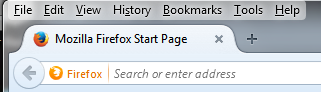
Firefox is a great browser. It is my second favorite, and I use it often. The only caveat with Firefox (as well as other browsers) is that, by default, the Menu bar doesn't show up. In order to see the menu bar, you have to right-click above the tabs and select "Menu Bar". After doing this, the menu bar will appear above the tabs.


Follow these steps to save your bookmarks in Firefox:
  1. Click on the "Bookmarks" menu option on the Menu bar.
  2. Next, select and click "Show All Bookmarks". 
  3. The Bookmarks/Libraries window will pop up (This is a separate window). 
  4. At this point, you have probably got the next steps figured out. Especially after going through the Google Chrome steps.
  5. You simply click on the Import and Backup menu choice and select "Export Bookmarks to HTML". 
  6. Here is a point where it is slightly different from Chrome. Firefox will simply name the file "bookmarks.html" by default. I suggest renaming the file "ff_bookmarks-11-25-2014.html"(change the date to the actual date). I would also suggest you create a "ff_bookmarks" folder inside your "My Documents" folder just so you can easily find them in case you need them.
  7. When the save as window comes up, simply give the file a proper name and click on the "Save" button.
The Firefox routine is very similar to Google Chrome. A few things I want to point out with Firefox. You have several additional options when saving bookmarks. The first two options are Backup and Restore. Those create backup copies of your settings. It is fine to create this backup (it save the data to a json file). But I would recommend you also backup your bookmarks to a regular HTML file. HTML can be edited with a plain text editor, and it can be opened and viewed with any web browser. You also have the option to import bookmarks from another browser. This is a good option if you have bookmarks in another browser and want them in Firefox. A word of caution, before you import bookmarks like this, make a backup of your current ones.

Internet Explorer
Internet Explorer is my least favorite browser. I know that is not relevant to this blog, I just take every opportunity to point that out. Sometimes you have to use IE and I understand.  

Actually I am not going into a lot of detail for IE. It is basically the same as the other two browsers. I will point out the general steps.
  1. As with Firefox, you have to turn on the Menu bar in Internet Explorer. You simply right-click above the tabs and select the Menu Bar option.
  2. Once you have a menu, click on "File" in the menu bar. Near the bottom of the File Menu, you will see the "Import and Export" menu option. 
  3. When you click on the "Import and export" menu option, a "Import/Export Settings" window will pop up. This is an interactive window that will guide you through the process.
  4. You will select the function you want (Export to a file) and then hit the next button. You also have an option to export your cookies and feeds. We will just focus on bookmarks.
  5. In the next window, select the "Favorites" check box and click next.
  6. In the next window, you can select specific folder or all of your bookmarks. We will select all of our bookmarks. Make sure the "Favorites" folder is selected and click Export.
  7. By default, IE will save your bookmarks to: C:\Users\yourusername\Documents\bookmark.htm (which is your "My Documents" folder). The first time you do this you might not have an option on where to save the file and what to name it. Subsequent times will allow you to change the location and name of the file. 
Saving your bookmarks in Internet Explorer is not difficult. It does have more steps and doesn't give you as many options as I would like but it does get the job done.

OK, now you have the information you need to make a backup of your bookmarks. Yeah, I know I didn't use as many pics for Firefox as I did with Chrome. And I didn't use any for Internet Explorer. But really folks, it is soooooooo easy you really don't need images. I tried to go through each step and make it simple. 

Now that we have gone over all three browsers, you have no excuse. Get in the habit of saving your bookmarks at least every month! So, what are you waiting for, go backup your bookmarks!

Friday, November 14, 2014

Plan B

Call me OCD, control freak or over analytical. I prefer to call it being prepared! Covering your bases. Ready for anything. Hence this post....Plan B. Do you have a plan B? I deal with a lot of people in many different circumstances that literally fly by the seat of their pants! Plan B? They barely have a Plan A!

What made me write this blog? It was a number of things actually. As you go through life, you observe people and their actions. Or, at least, I do. One circumstance is the many times I see people preparing to speak to a group. Whether it is a class, a presentation or a meeting, it seems like they are just not ready. It appears that they really didn't prepare for the task at hand. What initially is a relatively straightforward task has turned into a major issue with several problems. Ultimately their failure to properly prepare becomes someone else's problem. You would think that people that are going to be the center of attention would be prepared, have a "Plan B" and be able to deal with just about any roadblock in their way. Especially in education! These people are supposed to be in control of the activities and situations of the day, or at least the appointed time period allotted. All eyes are on them. Their audience has expectations of the person up front and in the spotlight.

I'll be the first to admit, I have mellowed out a considerable amount in the past several years. I realize we all slip up and forget sometimes AND things do go wrong. With that being said, you should make every attempt to think ahead, prepare for the worse possible scenario, and be ready for anything. When my family was involved in Cross Country racing, my wife and I managed the team. It was a lot of responsibility. It was unacceptable to prepare for a race, travel 6 to 8 hours, pay for all the expenses, only to to arrive on race day and have some $100.00 part, or the wrong torque settings on a steering stabilizer sideline you. We simply could not let that happen. Too much money was involved, too many sponsors to answer to and too many people were depending on us to get it right first time - every time! We literally could not afford to make a mistake or not be totally prepared. The buck stopped with us.

So, what are the results of failing to plan and have a "Plan B"? Many people are prepared to teach a subject or speak to a group. However, then their Plan A hits a bump, they lose focus and start sweating heavily. They studder and stammer and start looking around for someone to wave a magic wand and make everything better. If one piece of their puzzle doesn't fit right, they stop dead cold! They don't know what to do, and everything falls apart. That might be a slight exaggeration but I've seen many people lose focus and have a hard time getting back on track when something goes wrong. On the other hand, I know several Instructors/teachers/presenters that hardly miss a beat when things don't go as planned. Why? They know their subject matter like the back of their hands and they always have a Plan B. It is easily implemented and nothing is lost in the transition.

OK, I know what your are thinking, "we get it, some people are bad at planning". So what's my point? My point is, everyone needs a "Plan B". You should be prepared in the event that Plan A blows up, you can (even with slight modifications) continue on with very little pain. Very little content should be lost, and your participants don't become unruly. The point of this blog is to get you started on the process of planning for Plan B (and even Plan C) if you do presentations, public speaking or teaching of any kind. Specifically, I am going to discuss the equipment and the content medium that you will need for your presentation, lecture, meeting or teaching segment.

You would think that if you are presenting somewhere, they would at least have a computer and a projector. That will not always be the case. Even if they do have the minimum equipment, will it be set up properly? What's to say it might quit working just before your presentation? I would rather be prepared for the worst case scenario and not have to use my gear than to show up and be woefully unprepared. So, let's look at a list of what you might need:

  •  Computer (laptop).
  • Small projector.
  • Small portable speakers.
  • Extension cords, power adapter and any other associated cables.
  • Small portable PA system (depending on the size of the venue).
The computer and projector should have their own dedicated bag with all needed cables and power adapter in their associated bag. The speakers, extension cord and power adapter should be in a separate utility bag or backpack. I would also include an Ethernet cable, just in case.If you use a Mac/Apple computer, you should make sure that you have a video adapter for the projector cable. This is the bare minimum hardware I would travel with. If you do a lot of presenting, and you really need Ethernet access, you should probably invest in a wireless USB modem (IE: Verizon Wireless USB760). Or have the ability to turn your smart phone into a wireless hotspot. The PA (or public address) system is really a stretch. If you are speaking at a location big enough to need one, they should have a house system to use. However, you can find small, affordable units now that are easy to setup and easy to use. 

Before going out on a speaking engagement, you should inventory your equipment to make sure you have everything you need. It is also VERY IMPORTANT to inventory your equipment and carefully look over your work are before leaving. It is an irritating task to try to find a missing power adapter for that portable projector or laptop computer you depend on. Plus, it will be an added expense every time you lose a piece of equipment.

With the above list of equipment, you are guaranteed to be prepared for a class or speaking engagement. It might not be optimal (depending on the venue) but it will get you through and make your job a lot easier.

Now, let's turn our attention to the content. Almost everyone uses some type of presentation as a tool to share their content. The most popular presentation software being Microsoft PowerPoint. PowerPoint is a great tool to use to share your content. you need to be aware that PowerPoint is not the only presentation software available. Google has a presentation program in the Google Apps. All of the open source productivity software suites (OpenOffice, LibreOffice) have a presentation program that rivals PowerPoint. In fact, they are all PowerPoint compatible.

Most people think that if they have the hardware requirements covered, and they have a powerpoint presentation, they are all set. Hold on just a minute...... Let's look at some of the potential problems, issues and concerns about your content and how to avoid them. This is another area when a Plan B (and even a Plan C) will make you look like a hero in case something goes wrong.

Let's assume that you have the hardware all covered and it is good to go. You also have a powerpoint presentation on a USB thumb drive. You are set, right? What will you do when you arrive at the venue, get ready to present, plug the thumb drive in and.................IT DOESN'T WORK??????? Does this really happen? Believe in the time I have been in technology, I have actually seen people cry when their USB thumb drives fail! Yes, they fail all the time. USB thumb drives have a life cycle, and it is not a huge one. The life expectancy of a USB connector is between 1200 and 1500 cycles! So, if you are going to have your presentation on a USB thumb drive, you better have a backup. Here is what I recommend you have with you as far as a presentation is concerned:

  • Your presentation on a USB thumb drive.
  • Your presentation on a CD disc.
  • Your presentation on an external USB Hard Drive (different from a USB thumb drive).
  • Your presentation (with notes) printed out on hard copy.

In addition to the above, you need your powerpoint presentation converted to:

  • A PDF file.
  • A JPG or PNG (graphic) file.
  • An RTF file.
  • A WMV (video file).
  • An HTML (web) file.*
A copy of each converted presentation should be on each medium that you carry with you (see above list)! I'm sure you are wondering why you would want so many different copies of a presentation in so many different file formats. OPTIONS! What if you get to the venue where you are to present and their computer doesn't have PowerPoint software on their computer? You are thinking, "No problem, I have my computer. It has PowerPoint". But what if your computer decides to die at this most inopportune moment? No problem! If you have the five or six different file type listed above, you can still show your content. It might not have all the bells and whistles as PowerPoint, but it will get the job done and you will come out smelling like a rose! 

  • As a PDF, you can display it in Adobe Reader.
  • As a JPG or PNG, you can display it in any graphic viewer.
  • As an RTF, you can display it in any word/text processor (Word, Wordpad etc...).
  • As a WMV, you can display it in most video player (even a portable video player).
  • As an HTML file, you can display it in a Web Browser. (PowerPoint does not allow saving as HTML, however other presentation software has that option).
If all else fails, you still have your hard copy of your presentation. If you are a good speaker and can hold people's attention, you will do just fine with the hard copy. If not, you might want to re-consider your line of work (just kidding).

I know this planning and preparing for a Plan B sounds like a lot of work, but once you get a solid plan down and have a complete inventory of tools needed to do the job, you will find that it is actually easier. A side benefit is, when you are prepared for the job, you will find yourself having a lot more fun and the stress level should go down a lot!